How to log in
There are two ways to access LUNARC systems:
New to the Linux command line?
Once you log in you will be working in a Linux terminal. If you have not used one before, read the Introduction to Linux first — it covers the basic commands you will need immediately after logging in.
- The LUNARC HPC Desktop (ThinLinc) — see the HPC Desktop guide
- SSH terminal — described on this page
Prefer a video?
Login to LUNARC's COSMOS using SSH, including password and Pocket Pass reset (YouTube)
SSH login
Connect to COSMOS using either form:
Server names
| Method | Server |
|---|---|
| SSH | cosmos.lunarc.lu.se |
| ThinLinc (HPC Desktop) | cosmos-dt.lunarc.lu.se |
SSH is built into Linux and macOS. On Windows, use PuTTY — though Windows users are generally recommended to use the HPC Desktop instead.
Two-factor authentication
LUNARC uses two-factor authentication (2FA). Each login requires:
- Your LUNARC username and password
- A one-time password (OTP) from the PhenixID OneTouch app on your smartphone
First-time users
Before you can use the Pocket Pass app, you need to activate it. Follow the 2FA setup guide before attempting to log in.
First login — server fingerprints
The first time you connect, your SSH client will ask you to verify the server fingerprint. Check it against the values below before accepting:
2048 SHA256:NQ/G3C89HTTHDsNo53MueduO8s9WA4ePCCn4XV1G5do cosmos.lunarc.lu.se (RSA)
256  SHA256:Dz3UFUfoEItFI6Oee1NRmpx+r4mkD1PLnm6NKrl6a6s cosmos.lunarc.lu.se (ECDSA)
256  SHA256:cmCshUQAZ+DqFRyMntx9NbNHSDu9BExg8OJ+TX05gCs cosmos.lunarc.lu.se (ED25519)
Login sequence
A typical SSH session looks like this:
Enter your password first, then the OTP from your OneTouch app when prompted.
OS-specific SSH configuration
Your SSH client must be configured for keyboard-interactive login to receive the OTP prompt. Edit either /etc/ssh/ssh_config (system-wide, Redhat-based systems) or ~/.ssh/config (per-user):
Host cosmos.lunarc.lu.se
  PreferredAuthentications keyboard-interactive
  ServerAliveInterval 10

Host *
  PreferredAuthentications hostbased,publickey,keyboard-interactive,password
ServerAliveInterval 10 sends a keepalive every 10 seconds to prevent the connection from dropping during idle periods.
macOS handles keyboard-interactive login automatically — no extra configuration is needed for the OTP prompt.
To prevent the connection dropping during idle periods, add a ServerAliveInterval to ~/.ssh/config:
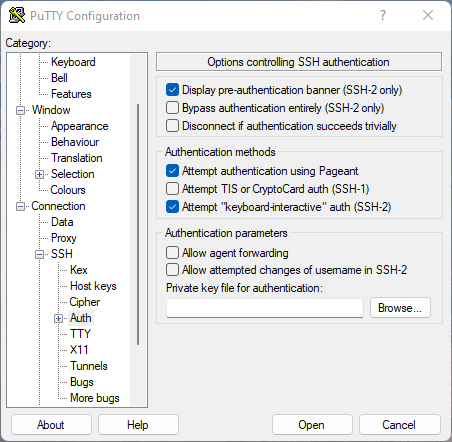
PuTTY must be configured for keyboard-interactive login:
- Open PuTTY and load the session for COSMOS
- Navigate to Connection → SSH → Auth in the left-hand tree
- Enable Attempt "keyboard-interactive" auth (SSH-2)
To prevent the session from dropping during idle periods, set Seconds between keepalives to a value greater than 0 under Connection.
Troubleshooting
SSH keeps asking for a password and never prompts for an OTP
Your Pocket Pass has not been activated. Follow the 2FA setup guide to activate it, then try again.
ThinLinc fails with "The SSH connection succeeded, but the ThinLinc server connection failed"
You are most likely using the wrong server name. ThinLinc requires cosmos-dt.lunarc.lu.se, not cosmos.lunarc.lu.se. See the server names table above.
Author: (LUNARC)
Last Updated: 2024-08-08